















How to Use Movavi for Faster and Smarter Edits
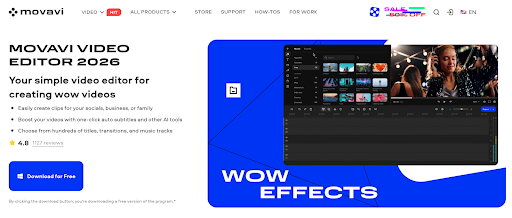
Movavi has been steering its desktop video editor toward one clear idea: let the app take care of the repetitive parts, so you can spend your time on the actual story you’re trying to tell. It’s still a timeline-based editor, but the newer tools make it feel less like a plain “trim and export” app and more like an everyday AI video editor you can rely on when you’re editing often.
If you’re making YouTube videos, tutorials, quick social clips, or branded content and you don’t want to fight a complicated interface, Movavi positions itself as an approachable Windows and macOS option that still brings genuinely smart shortcuts for busy creators.
The AI Tools That Save You Time
AI Background Removal + Motion Tracking
One of the fastest ways to feel Movavi’s modern side is with its background removal. You don’t need a green screen setup or an extra plugin workflow: you place your clip on the timeline, run the background removal tool, and the software isolates your subject automatically.
This feature became a big part of Movavi’s AI direction in version 23, when it rolled out AI background removal alongside AI noise removal. In practice, it’s a shortcut that fits a lot of creator formats: talking head over screen recording, product UI walkthroughs, gameplay overlays, or a clean branded background without spending your whole evening masking frames.
Then there’s AI motion tracking, which pairs nicely with that fast style of editing. The point is simple: you can attach text, callouts, emojis, and other overlays to moving objects, and Movavi Video Editor tracks it so your overlay stays locked in place as the object shifts.
Cleaner Sound with AI Noise Removal and Audio Controls
If you’re recording in a normal room (home office, living room, etc.), audio is usually where good footage starts to feel unprofessional. Movavi Video Editor leans on AI noise removal to reduce things like wind, traffic hum, and general background mess automatically.
Movavi Video Editor also includes a one-click audio enhancement option plus manual audio controls, so you can improve clarity, manage volume, and stack a few adjustments right inside the same project.
Auto Subtitles That Turn Into a Real Captioning Workflow
If you publish regularly, captions stop being a nice extra and turn into a requirement for accessibility, retention, and platform-friendly formatting. Movavi has been moving quickly here. In October 2024, it introduced Auto subtitles, using AI speech recognition to generate captions that sync with your video, with tools to edit and correct lines for accuracy.
The bigger leap came with the major October 2025 update. Version 26 expanded subtitles into a more complete pipeline. It brought 30+ new subtitle styles so you can restyle captions fast in the Styles tab, plus more detailed controls in the Design tab when you want to fine-tune. It also added instant translation of auto subtitles into English and the ability to export captions as SRT files, which is great when you’re repurposing the same content across platforms.
Silence Removal and Ultra-Fast Playback
A lot of editing time is scrubbing through footage, hunting down pauses, and trimming dead space. Movavi Video Editor’s Silence Removal tackles that by detecting pauses in speech and cutting them automatically based on the threshold and minimum pause length you set. You hit the tool, get a cleaner result, and then adjust if needed instead of doing everything manually.
Movavi also added playback speed controls up to 100x, which is surprisingly helpful when you’re working on time-lapse content or tutorials.
The Everyday Editing Experience And Why It Feels Smoother Now
Movavi’s AI features sit on top of a timeline that’s been getting steadily more comfortable to use. Version 24 introduced a refreshed timeline and a clearer overall layout, plus easier cutting with the Blade tool and more approachable color correction controls aimed at people who don’t want a pro-grade grading suite.
Across 2024 and 2025, it kept stacking practical improvements that matter when you edit frequently: timeline snapping so clips align cleanly, simpler track management, quicker effect installation, smoother previews, and better performance once your projects get heavier.
The October 2025 cycle continued that pattern. Movavi sped up the loading of transitions, stickers, titles, and other effects so content packs don’t slow you down. It also made trimming more direct, so you can hover over a clip edge and drag rather than stepping into a separate trim mode.
Where Movavi Fits Best in a Creator Workflow
For YouTube and Social Creators
If you want the best video editing software for YouTube for common tasks, Movavi makes a strong argument. You can cut a talking-head video, remove silence, clean up audio, drop in B-roll, add motion-tracked callouts, and generate subtitles without leaving the same project. That’s exactly what most creators need from YouTube editing software when they’re trying to stay on a consistent upload schedule.
For Shorts, Reels, and TikTok-style edits, the combination of background removal and motion tracking is especially practical. It supports those common formats where a subject sits over a screen recording or where stickers and labels need to follow a product. And because the subtitle workflow includes SRT export, it’s easier to keep captions tidy when you repurpose content.
This is also where common creator chores show up. Sometimes you just need to resize video for the platform you’re posting on, then export and move on. Movavi Video Editor’s overall “fewer steps” approach is built around that reality: get your cut done, adjust what’s needed for the target format, and publish.
Movavi isn’t trying to compete head-on with the most complex pro suites. It’s closer to being an iMovie alternative than a Premiere-level replacement, and that’s intentional.
Strengths, Tradeoffs, and Why You Might Need Something Else
Where Movavi Video Editor really shines is removing grunt work: AI background removal, AI noise removal, motion tracking, automatic subtitles, and silence removal all reduce the gap between recording something and having a publishable edit.
There are tradeoffs, though. It’s not designed for deep, node-based compositing or advanced color grading. And while the interface is friendly, the toolset has grown enough that a total beginner will still need a little exploration time to feel comfortable.
It’s also not a fully free product. If your #1 requirement is paying nothing, you’ll probably compare it against free video editing software first and decide whether Movavi’s time-saving tools are worth the upgrade for you.
And if your editing need is extremely narrow, that matters too. For example, if all you want is to loop video online for a quick repeating clip, a full desktop editor might be more than you need. Movavi is built for end-to-end edits, not just one tiny task.
Final Thoughts: Movavi as an Everyday Editor
Movavi’s plan is pretty obvious: reduce manual work and help creators publish faster. AI features, silence removal, and faster playback are all about getting you to an upload with fewer tedious steps.
Movavi Video Editor is not trying to be the most complex tool on the market. Instead, it aims to be the editor you can open regularly, finish an edit quickly, and get back to making the next thing, especially if your world revolves around YouTube, tutorials, and social content.