
















How to Remove Background From Product Images for eCommerce
AI photo-editing tools are the fastest way to remove backgrounds from product catalogs. You upload photos, click a button, and AI handles the rest. Quality varies from tool to tool.
We’ve tested dozens of tools and found Pixelcut to be one of the best for eCommerce. But regardless of the tools, there are a few steps that ensure product images are upload-ready to any online store, marketplace, or eCommerce platform.
What to Do Before Removing Backgrounds from Product Images
The last thing you’d want is hundreds of product photo cut-outs with varying resolutions, aspect ratios, exposure settings, and color grading. Think about branding, marketplace requirements, and your team’s workflows. Below is a checklist of what to do before removing backgrounds:
Cull Your Photos
Not every product photo needs to be uploaded. When going through your raw images, don’t look for the “perfect” shot. It’s faster to look for reasons to delete bad ones. Here’s how:
- Zoom in on important details such as logos, text, and edges. If they’re blurry, delete them.
- Delete over- and under-exposed photos (blown-out whites, pitch-black shadows).
- Look for unexpected dust, hair, dents, or scratches on the packaging or products.
- Keep hero shots and 3-5 supporting shots with different angles, close-ups, or textures.
Correct Exposure and Color
Product photos are the only references customers have. They can’t see the physical product, so it has to be as accurate to the real thing as possible. Consider the following:
- Control white balance: This affects the temperature and tint (green/magenta).
- Use an eyedropper tool (Lightroom, Photoshop, or Pixelcut) to check color accuracy.
- Lower highlights if photos have shiny spots. Raise shadows to show hidden textures.
- Adjust exposure to change the brightness of the entire image.
- Fine-tune contrast to help the product be distinct from the background.
Check Platform Requirement
Not all marketplaces allow you to upload any product photos you want. Etsy lets you have flexible styling. Meanwhile, Amazon has strict background and aspect ratio rules. Your eCommerce site might also have its own branding guidelines.
With Pixelcut, you can batch edit your entire product catalog to match different dimensions, backgrounds, and aspect ratios. That’s why we always recommend it for eCommerce. You get consistent results every time, whether you need square crops or horizontal layouts.
And you can batch-edit multiple tasks with Pixelcut, which is why it’s our top choice if you are going the AI photo editor route for background removal. After getting your cutouts, you can add logos and watermarks and set your preferences across your entire library.
How to Remove Background from Product Images Manually
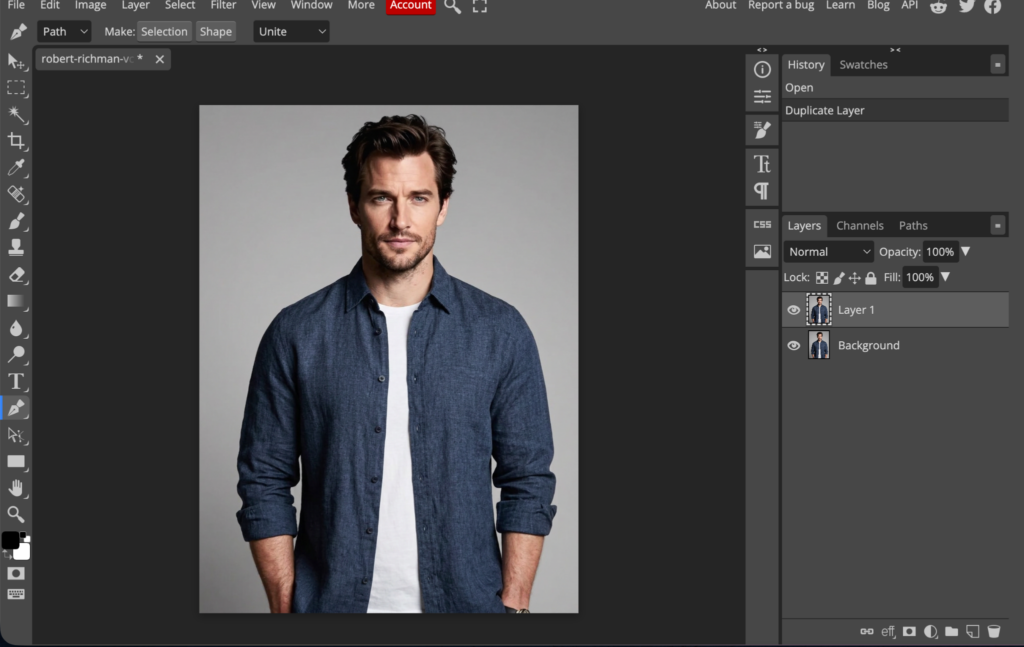
If your products are too complex for AI photo editor tools to handle, the best option is to remove backgrounds manually. The most precise method is using a pen tool, which is commonly found in tools like Photoshop or Photopea (it’s a free web-based alternative).
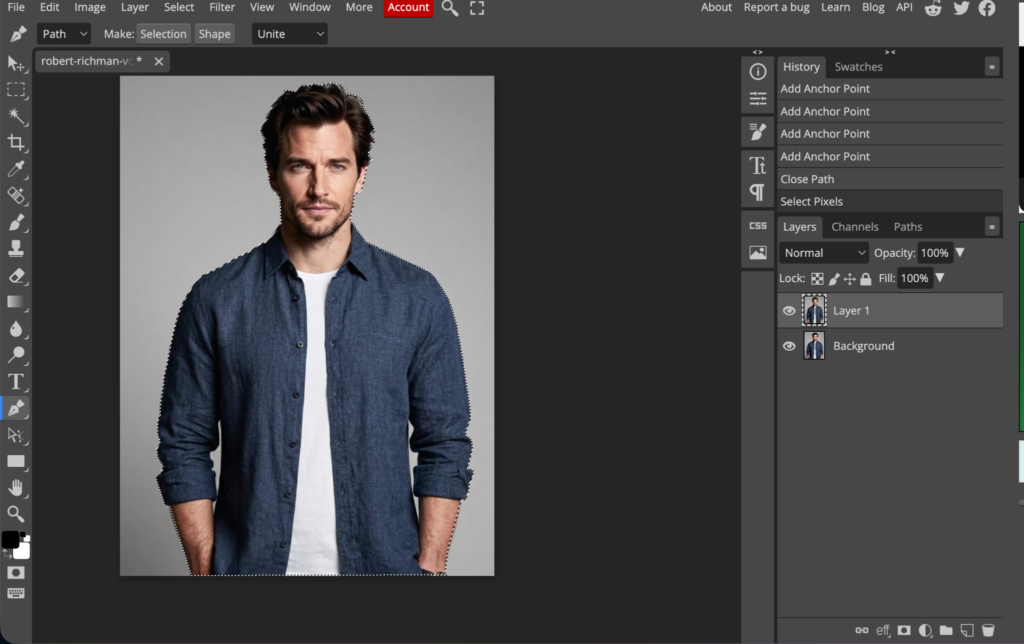
To remove backgrounds manually, first, duplicate the layer. You don’t want to edit the original photo directly. Then, trace the product with a pen tool, click on a straight edge, and select nearby points until you cover the entire outline.
Then, right-click anywhere inside, choose “Make Selection” and click “Replace.” In the right section, ensure that the layer with the pathing is highlighted, then click the “Add Raster Mask” icon (the one with the circle). That will remove the subject from the background.
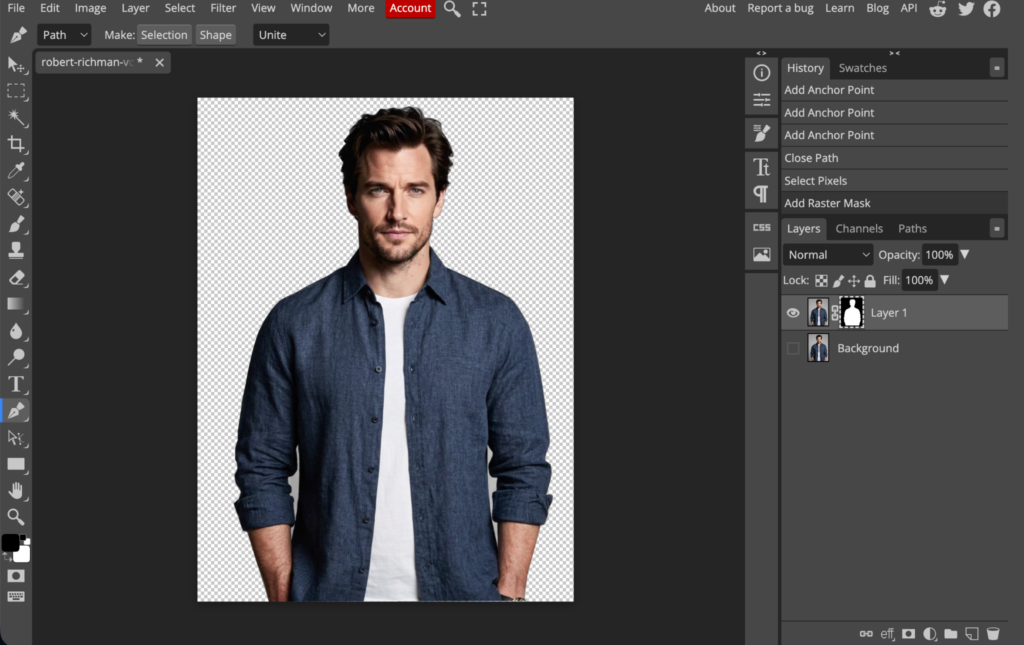
If you remove the background view, you’ll be left with a subject without a background. However, for photos like this with inner gaps that need to be removed, you just have to go to the pen tool again, select the gaps, close the loop, and click “Subtract.” After that, you’ll be good to go.
Unfortunately, even professionals would take a few minutes to do all of these steps manually. And if you have hundreds or thousands of photos in your catalog, that would take hours of tedious work. If you want to scale, you’d need a tool that can automate the process.
How to Remove Background From Product Images with Pixelcut
Using a tool like Pixelcut is a no-brainer in the sense that you don’t need to use your brain for something like this. Just upload the photo and the AI handles everything for you. It even takes care of fine details like fur and hair.
In addition, there are a couple of life-saving tools inside, along with the background remover. For example, if you’ve been given old or blurry product images, you can use Pixelcut’s Image Upscaler first before making cut-outs.
And with the batch editing tool, all blurry images are upscaled, have their backgrounds removed, and are replaced with ones that fit whatever platform you’re on. And if you want to test it out, you can do so for free.