

















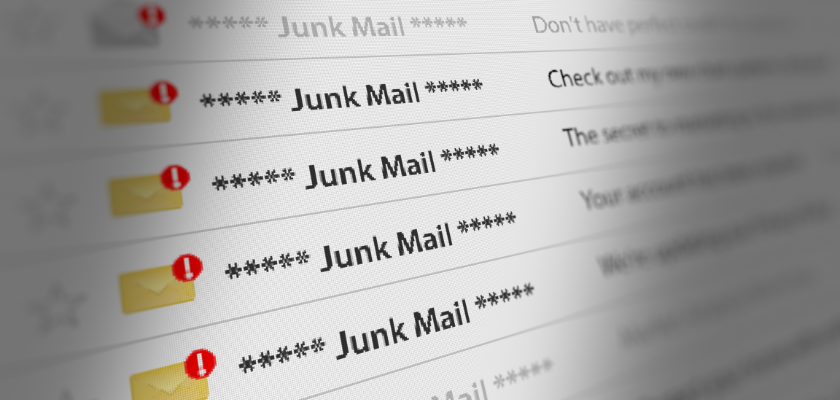
Setting Up Business E-mail for Clients and Which Provider to Pick
Every new client website comes with an email job attached, whether or not it appears in the brief. The contact form has to reach the client reliably, the client’s replies have to land in customers’ inboxes rather than their spam folders, and any campaign mail has to meet Gmail’s sender requirements, which have applied since February 2024 and have been enforced more strictly since November 2025. When any of these links breaks, the client rarely blames their email setup. They blame the website, and by extension, the agency that built it.
For digital marketing agencies, this makes email deliverability part of the service, not an afterthought. A lead-generation campaign is only as good as the inbox it reaches, and a beautifully designed site loses its value if enquiries quietly disappear. Getting the foundations right at launch protects the client’s reputation, the agency’s results and the relationship between the two.
This guide covers why form and campaign mail ends up in spam, how to set up SPF, DKIM and DMARC properly, why mailboxes belong on the client’s own domain from day one, and how to choose the right provider for a small client team. It is published in partnership with one.com, which appears first as the featured partner.
Why form and campaign mail lands in spam
Most deliverability problems on client sites have nothing to do with the content of the message. They come down to how the mail is sent: which address it claims to come from, which server sends it, and whether the domain has authorised that server to send on its behalf. Receiving servers check all of this before a message ever reaches an inbox, and mail that fails those checks is filtered to spam or rejected outright. Three causes come up again and again: contact forms that send as the visitor, services the domain has never authorised, and campaign volume that triggers Gmail’s stricter bulk sender rules.
Contact forms that pretend to be the visitor
Some form setups send each enquiry with the visitor’s address in the From line. When that address is a Gmail one and the message comes from the web server, Google treats it as From-header spoofing. The fix is to send form mail from an address on the client’s own domain through an authenticated mail service, with the visitor’s address in Reply-To so the client can still answer in one click.
Mail the domain has not authorised
A website that sends mail through a server missing from the domain’s SPF record, without a DKIM signature, fails the checks receiving servers run. The same applies to CRMs, booking tools and invoicing apps that send on the client’s behalf.
Campaign volume
Gmail’s sender guidelines FAQ defines a bulk sender as one sending close to 5,000 messages or more to personal Gmail accounts in 24 hours, counting everything from the same primary domain, subdomains included, and once a domain crosses that line the status is permanent. Bulk senders need SPF and DKIM, a DMARC record of at least p=none, alignment between the From domain and SPF or DKIM, and one-click unsubscribe on marketing mail. Google asks senders to keep user-reported spam below 0.1% and never let it reach 0.3%. Transactional messages such as form submission confirmations do not need one-click unsubscribe, and the rules apply to mail sent to personal Gmail accounts, not to Google Workspace accounts.
SPF, DKIM and DMARC, set up properly
The NCSC’s email security guidance describes the three controls plainly. SPF publishes the servers trusted to send for a domain, DKIM signs outgoing mail cryptographically to show it came from that domain, and DMARC tells receiving servers what to do with mail that fails those checks and sends back reports on how the domain’s mail is handled.
Set them up in this order:
- List every sending service. Include the mailbox provider, the website or form mailer, the campaign platform and any app that sends as the client. Anything missing will fail once DMARC is enforced.
- Publish one SPF record. Add each service and keep the list short, because SPF has a hard limit on DNS lookups.
- Turn on DKIM for each service. Most providers generate the key and give you a DNS record to publish.
- Publish DMARC at p=none with a reporting address. The NCSC recommends a DMARC record on every domain, parked domains included, starting at a policy of none.
- Read the reports and tighten. The NCSC notes that many organisations move on from none after about six to eight weeks, first to quarantine and then to reject, which it describes as the best way to prevent spoofing of a domain.
Mailboxes on the client’s own domain from day one
Set up business email on your domain before the site launches. Addresses on the client’s own domain keep working when staff change, when the agency changes and when the site is rebuilt, and they stop the business drifting onto personal webmail accounts that leave with the people using them. The domain needs to be registered to the client first, which the domain guide for agencies covers.
Moving an existing client across is manageable. one.com’s webmail includes a migration tool that copies messages, folders and contacts from the old account into the same folder structure, and its mailboxes work in any IMAP client, including Outlook, the Gmail app and Apple Mail, as well as in webmail.
Migrating a client’s mail without losing messages
- List the mailboxes and aliases in use, including shared addresses such as info and accounts.
- Lower the TTL on the MX records a day or two ahead.
- Create the new mailboxes with the same addresses.
- Copy existing mail with the provider’s migration tool; one.com’s webmail tool copies messages, folders and contacts.
- Switch the MX records and update SPF and DKIM for the new provider.
- Check the old mailboxes after the switch for anything that arrived during the change, and copy it across.
- Reconnect phones and desktop apps with the new IMAP settings, then close the old accounts after a short overlap.
Mailboxes, aliases and staff changes
Seat costs depend on how addresses are structured. Give each person a mailbox, and set role addresses such as info, sales and accounts up as aliases or forwards to the people who handle them, where the provider supports it. When someone leaves the client’s business, reset their password, remove them from shared calendars, turn their address into an alias for whoever takes over so customer replies keep arriving, and keep their mail for as long as the client needs it.
Apply the same rule to the agency. When a retainer ends, remove agency logins from the mail admin panel and hand the client a list of every mailbox, alias and DNS record, with where each one delivers.
Setting up mail on phones and desktop apps
one.com’s mailboxes work in webmail and in any IMAP client, including Outlook, the Gmail app and Apple Mail. When setting up a client’s devices, use IMAP so messages, folders and sent items stay in sync across phone, laptop and webmail, and record the incoming and outgoing server settings in the handover sheet. For teams that share a role address, decide whether each person reads it through an alias delivered to their own mailbox or through a shared mailbox, since that changes how replies and sent items appear. Send a test message from each device once it is set up, because a wrong outgoing server setting often shows up only when the first reply fails.
What’s the best business email provider for a UK small business?
For a small team that wants mail, domain and website in one account, the mailboxes that come with one.com hosting, this guide’s featured partner, cover webmail, calendar and IMAP access for desktop and phone apps. Teams that work in shared documents are better placed on Google Workspace or Microsoft 365, while Zoho Mail and Fastmail suit clients who want a lower-cost suite or an independent, mail-focused service. Decide by how the team works, then compare cost per seat.
The providers
one.com is the featured partner of this guide. The other four are listed by the team they suit.
1. one.com (featured partner)
Email hosting from one.com comes two ways. Every hosting plan includes email on your own domain, with one, five or fifteen accounts depending on the tier, and standalone email plans cover clients who only need mail, with a free first-year domain. The service includes webmail, a calendar, an AI writing assistant and ad-free inboxes, and one.com’s entry email plan lists 3 GB per mailbox within 15 GB of total email storage. Mail is hosted in Europe.
Best for: small teams that want mail, domain and website under one account and one bill.
2. Google Workspace
Gmail on the client’s own domain, alongside Docs, Sheets, Drive and Meet, with admin controls for users, groups and devices. Best for: teams that collaborate in shared documents.
3. Microsoft 365
Exchange-based mail with Outlook, the Office apps and Teams, plus shared mailboxes for role addresses. Best for: clients whose work already runs on Word, Excel and Outlook.
4. Zoho Mail
Business mail inside Zoho’s wider suite of business apps. Best for: cost-conscious teams, and clients already using Zoho CRM.
5. Fastmail
An independent email provider focused on mail, calendars and contacts, with support for custom domains and aliases. Best for: clients who want a dedicated mail service separate from any office suite.
Cost per seat: the deciding table
Productivity suites and specialist providers generally price per user, so the seat count multiplies every line. The table lists what to price for any provider, with one.com’s stated position alongside.
| Cost item | What to check with each provider | one.com’s stated position |
| Mailbox licence | Per-user subscription, or included with another plan | Included with every one.com hosting plan, with standalone email plans available |
| Domain | Bought separately or bundled | Free for the first year with email and hosting plans |
| Storage | Allowance per user and the upgrade price | Entry email plan lists 3 GB per mailbox and 15 GB in total |
| Migration | Built-in tool or manual work | Webmail migration tool copies messages, folders and contacts |
| Extras | Office apps, video calls, archiving | Webmail, calendar and an AI writing assistant |
| Admin | Where users are added and removed | Mail accounts managed in the one.com control panel |
The comparison shifts with the team. Mailboxes bundled with hosting add no per-seat line within the accounts a plan includes, while a suite’s per-seat price buys shared documents and video calls that some teams use all day.
A setup checklist for every new client
- Confirm the domain is registered in the client’s name.
- Pick the mailbox provider by how the team works.
- Create mailboxes for people and aliases for roles, such as info and accounts, which usually avoids paying for a seat per role.
- Publish SPF, DKIM and DMARC for every sending service.
- Send form mail from the client’s domain through authenticated SMTP, with the visitor in Reply-To.
- Test with the NCSC’s email security check, and with messages to personal Gmail and Outlook addresses.
- Review the DMARC reports and step the policy up to quarantine, then reject.
- Put the domain and mailbox renewals in the agency’s renewal calendar.
Keeping deliverability healthy after launch
Authentication is set up once, but deliverability needs a light check every month. Read the DMARC reports for senders you do not recognise, which usually turn out to be a new tool someone in the client’s team has connected. When the client adds a newsletter platform, booking system or invoicing app, add it to SPF and turn on DKIM before it sends its first message. If the client runs campaigns to personal Gmail addresses, watch the spam complaint rate against Google’s thresholds, and keep marketing lists to people who opted in. A short note of each change in the handover sheet keeps the DNS records and the list of approved senders in step.
Verdict
Most of the deliverability work on a client site is setup, done once and then checked through DMARC reports: authenticated form mail, SPF, DKIM and DMARC for every sender, and mailboxes on the client’s own domain. For small teams that want mail with their domain and site, one.com’s bundled mailboxes are this guide’s featured choice, and teams built around shared documents fit Google Workspace or Microsoft 365. The one.com review covers the rest of the bundle.