

















Master Subtitle Styling Fast With Pippit’s AI Video Generator Today
Subtitles affect readability, understanding, speed, and consistency. They also assist viewers in keeping up with spoken content in various settings. Subtitles are more than just text; they help convey the story. The viewing experience is influenced by typography, timing, placement, and contrast. Pippit assists with captioning videos and then optimizes the presentation of the subtitles afterwards. You can make some fine-tuning to make the result more consistent with your visuals, message, audience, and publishing format.
Why Subtitle Styling Matters More Than Simply Adding Captions
Subtitles that are not in a good position can clash with products, faces, interfaces, and other important elements. Readability also varies by screen, screen orientation, background, and viewing conditions. The use of good typography establishes a hierarchy in the presentation of spoken information and supporting visual text. Each subtitle is naturally “consumed” by the viewers, depending on timing and line length. While a good AI video generator can speed up the captioning process, personalizing and styling will still need attention. Be sure to review wording and timing prior to publication, particularly if captions carry significant information.
Choose a Subtitle Approach That Fits the Video Format
Short-form videos typically make use of brief subtitles which can be scanned rapidly. Detailed captions may be needed for complex explanations in educational videos. Subjects, products, interfaces, and important visual areas should all be taken into consideration when placing them. Aspect ratios also affect the amount of space available for captions. Seedance 2.5 may be used with varying workflows that are available in Pippit. Information retention can be enhanced by selective emphasis, comfortable spacing, and clear hierarchy. The treatment of the subtitle should also reflect the general look and feel of the video.
Steps to Master Subtitle Styling Fast With Pippit’s AI Video Generator Today
Step 1: Generate Your Video
- Sign up for Pippit with your Google, TikTok, or Facebook account information.
- Open “More” on the left vertical menu bar and click “Video generator”.
- Choose an AI model, such as Dreamina Seedance 1.0, Dreamina Seedance 2.0, Dreamina Seedance 2.0 Fast, Dreamina Seedance 2.0 Mini, or Dreamina Seedance 2.5.
- Enter a detailed prompt describing the video and desired style.
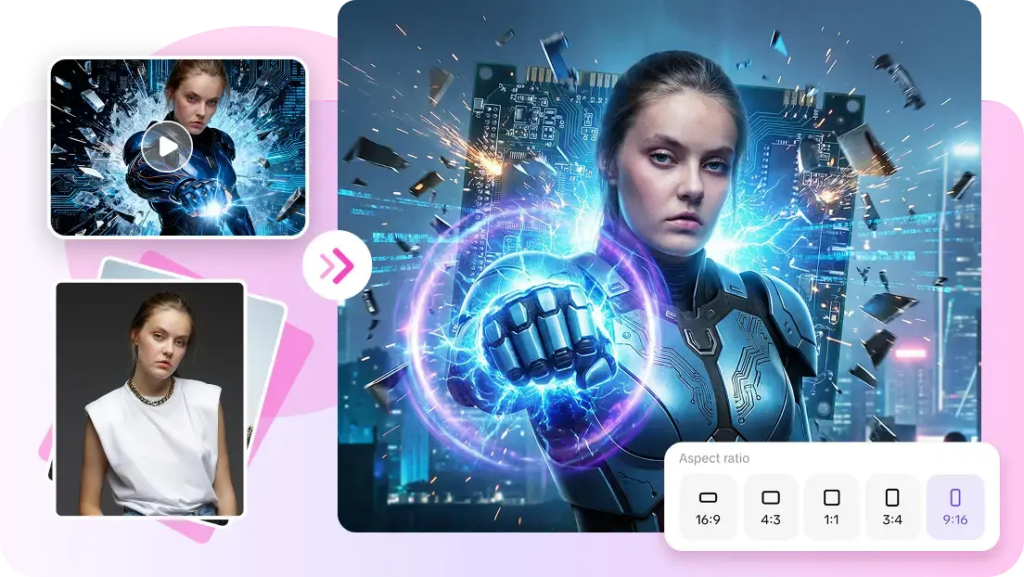
- Select the video length, language, subtitles, and aspect ratio.
- Click “+” to upload reference images or videos from your device, phone, Dropbox, or a link. You can also select assets.
- Click “Generate”.
Step 2: Review the Subtitles
- After clicking “Generate”, Pippit’s AI video generator creates the video from your prompt and reference media.
- The AI manages transitions, pacing, captions, avatars, voice, lyrics, and visual enhancements.
- Review the resulting video draft and its subtitles.
Step 3: Style and Export
- Click “Download” at the top right to save the current version. Select “Regenerate” for another version or “Edit more” below the video for further customization.
- Edit captions manually and add text. Adjust size, color, alignment, filters, and effects.
- Add background music, remove backgrounds, and fine-tune the visuals.
- Click “Export” in the top right when finished.
- Select “Publish” for TikTok, Instagram, or Facebook, or “Download” using your preferred format, resolution, frame rate, and quality.
Subtitle Styling Elements You Can Fine-Tune
Pippit offers a number of controls for tuning the subtitle appearance after generation. These are elements that make captions clear, as well as help maintain the visual structure of the video:
- Typography: Opt for clear text treatments that will be legible in varying video environments.
- Sizing: Adjust text size without overpowering the important visuals with subtitles.
- Color: Ensure that there is enough contrast between text and backgrounds.
- Alignment: Always place captions in the same place and stay out of the way of subjects and user interface items.
- Spacing: Do not allow too small a line spacing and do not allow subtitle blocks to be too crowded.
- Emphasis: Selectively highlight key words when this enhances comprehension and/or attention.
These changes, when combined, make subtitles more effective in enhancing the message without overpowering the video.
Synchronize Subtitle Presentation With Video Pacing
Timing is as important as subtitle presentation. The viewer should have sufficient time to read each caption. If the subtitles change too quickly, it can cause unnecessary pressure to read, and comprehension will decrease. Caption rhythm is affected by pauses, scene changes, and the pacing of narration. Often it is better to use fewer words without altering the meaning. Pippit also offers the ability to further edit after generation, enabling creators to make timing adjustments when needed. Never review subtitles as text – always watch the video. Pacing issues can be identified in full playback, which may not be detected in isolated caption checks.
Create Subtitle Styles That Strengthen Visual Hierarchy
Subtitles should not compete with headings, labels, calls to action, and supporting text. A clear hierarchy makes it easier for viewers to see what information is important to take in first. Placing things consistently also helps minimize unnecessary eye movement from scene to scene. Animation should be kept to a minimum, as too much animation can make it harder to read. Subtitles should complement the message, not repeat everything that is on the screen. Pippit also allows post-generation editing to be useful for when there is a need for a clearer separation of text elements. Standardization is particularly crucial for multi-video campaigns, series, tutorials, and recurring social content.
Review and Correct AI-Generated Captions Before Exporting
While AI-generated captions may be a good starting point, they should be carefully reviewed by a human before publication. Special terminology, numbers, abbreviations, and technical terms, as well as names, will need special attention. Pippit’s editing interface enables manual corrections to be made to the wording, if necessary. The color, alignment, size, and other text appearance can be changed thereafter as well. Check captions with the audio and note any discrepancies in timing. Look at each subtitle to see if it occurs when the corresponding speech occurs. The final full video quality check can be used to pick up any errors, inconsistent styling, and hard-to-read video before publication.
Conclusion
Good subtitle styling includes correctness, legibility, timing, and consistency. AI can speed up caption production and make initial video efforts easier. Manual refinement does, however, enhance the final presentation and clarity. After generating a subtitle draft, creators can use Pippit’s editing controls to customize the appearance of the subtitles. Read all of the captions in the full viewing experience. Good subtitles should be informative, aid in visual hierarchy, and be easy to read but not distracting from the video.