














How we turned our UI into interactive cutouts for the new Blutui website
How we turned real Blutui screens into interactive HTML and CSS cutouts for our new website, using Claude, container queries and a sandbox site to build them faster than images or video.
A few weeks ago we started rebuilding the Blutui website. The old site wasn’t telling the right story. We’re proud of the product, and the site wasn’t showing enough of it. So a big part of the redesign came down to one question: how do we actually show off the Blutui UX and UI?
Why showing the product mattered
Blutui is built for agencies, and agencies are some of the hardest people to show software to. They judge interfaces for a living. Telling them a platform is clean and easy to use doesn’t count for much. They want to see it for themselves.
The old site leaned on copy and a handful of static screenshots. The screenshots were small, they went out of date every time we shipped a change, and they didn’t show how anything worked. If someone wanted a proper look at Blutui, they had to sign up or book a demo first. That’s a big ask when you’re still deciding whether a platform is worth your time.
We wanted a visitor to get a feel for Blutui in their first minute on the site, without needing to talk to anyone. That meant putting the real interface on the page, at a size people could read, and letting them click around in it. Once we’d decided that, the question became how to build it.
Starting with a screenshot (and getting it wrong)
My first idea was to turn pieces of the Blutui interface into small interactive chunks of HTML and CSS. To test it, I gave Claude a screenshot and asked it to rebuild it. The results weren’t great. Early versions looked nothing like the UI I’d given it, and every one of them needed a lot of tweaking.
Looking back, it makes sense. A screenshot is just pixels. It doesn’t tell Claude how much padding sits around a panel, which colours repeat across the product, or what a tab does when you click it. Claude was guessing at all of that, and every guess was off in a slightly different way.
So I worked backwards. I’d already built a tool that makes visual representations of UI, so I tried that instead. It produces a much simpler version: just lines and text on a solid background, like the examples below.

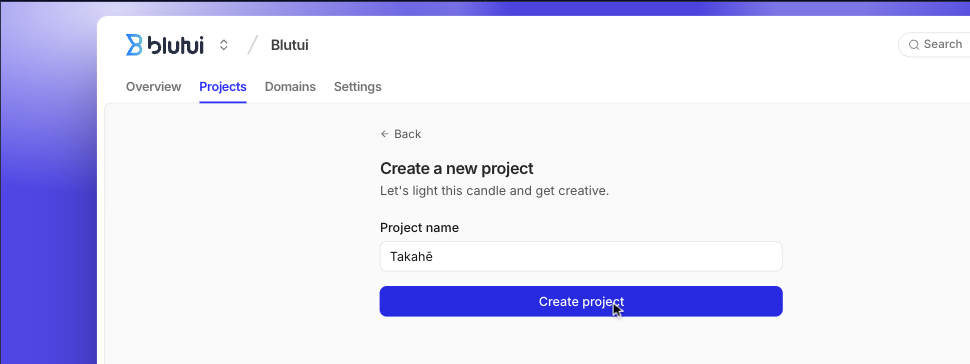
They looked distinctive, but on a site that’s already dark navy they would have felt flat.
They also looked like a drawing of a product rather than the product itself. We wanted people to recognise the real Blutui when they signed up, not a stylised version of it. So we went back to building cutouts that matched the actual interface, this time with a better process behind them.
A quick detour: our sandbox site
Before building any of these visuals into the real site, we wanted to see how they’d look. So we made our own sandbox site, which became the staging ground for every bit of UI that ended up on the new website.
It let us keep iterating on the visuals while we were still finishing the copy. It also gave the team one place to look at everything and give feedback, which we really needed.
Keeping it separate from the main site mattered. We could break things, try different versions of the same cutout side by side, and share one link with anyone who needed to weigh in, all without touching the site that was about to go live.
You can take a look here.
Building the cutouts
We wanted to turn nearly every important screen in Blutui into a cutout. I started with the most basic screen, one where the background could stay the same while different content swapped in and out. That became the base. The fine-tuning was mostly padding and positioning. Once that was right, I had a background I was happy with for the Console UI. From there, each version only had to change the highlighted tab and update the content inside it.
I used Claude to iterate the whole way through, and as we went I had it write down the rules it was following. Once one or two cutouts were in a good place, I could give it those as references along with a screenshot, and the conversions came out close to one-to-one. The first couple took a few hours each, most of that time was spent fine tuning them. Later ones took only a few minutes each, because Claude had better references to work from and each new cutout needed fewer fixes.
Those written rules turned out to be the most useful part of the whole process. They covered things like spacing, colours and how each panel and tab should be put together, so every new cutout started from decisions we’d already made instead of Claude working them out again. It also kept the cutouts consistent with each other, which matters when there are lots of them across one site.
I followed the same steps for the rest of the UI, from the Console to the dashboard. That’s how we made every cutout you see across the site.
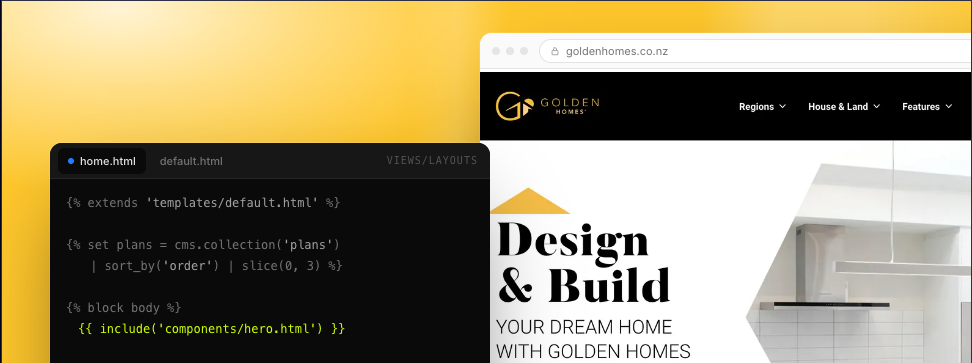
Each cutout is its own canvas file, which is simply an HTML file with Blutui Canvas code in it. Some also have custom CSS animations that loop. Adding a new one to the site is as simple as dropping the file into a folder.
Using the cutouts during design
We also used the cutouts while we were designing the site. In the visual tool we could adjust them while the pages were still being designed, then use them as screenshots and placeholders in our designs. That meant we didn’t have to rebuild the UI in Figma.
The cutouts use container queries, so the same one fits well in lots of different shapes and sizes. When we moved them over to the main site, the only things we had to tweak were the sizing and the text content.
Why build them in code?
A static image only shows one moment. Building the cutouts in code means people can interact with them, so they see how Blutui works instead of only reading about it.
We also thought about using video, but we wanted several of these on the same page. You can optimise video, but once the cutouts were built and we compared the two, the code versions kept the page faster and lighter. They’re also interactive, which a video cannot be.
There’s a practical benefit too. Blutui changes all the time. When the interface changes, updating a cutout means editing an HTML file. With screenshots or video, it means capturing everything again.
What we’d tell anyone trying this
If you’re thinking about doing something similar for your own product, these are the things that made the biggest difference for us:
- Start with the simplest screen and get it right before you build anything else. Everything after it borrows from that base.
- Have the AI write down the rules it’s following as you go. Those rules become your references and save hours on every cutout after the first few.
- Give it finished examples alongside the screenshot. A screenshot on its own isn’t enough to work from.
- Build somewhere separate first. A sandbox site gives the team one place to review everything before it goes live.
- Use container queries, so one cutout works at any size instead of needing a separate version for every layout.
Wrapping up
It started with a screenshot and a pretty rough first attempt from Claude. It ended with a set of cutouts that run across the whole site. Most of the effort went into the first one or two: getting the base right, and having Claude write down the rules as we went. Once those were in place, the rest came together much faster.
In the end it did what we set out to do. People landing on the site can see Blutui and click through it before they ever sign up, which was the reason we started all this.
The sandbox site helped a lot too. Having all the cutouts in one place made it easier to iterate and get feedback from the team before anything went live.
If you haven’t seen the new site yet, have a look and try clicking through the cutouts.
Original article: blutui.com/articles/how-we-created-our-cutouts